Installing Official Extensions
Overview
Next Design gradually releases official extensions via the cloud.
The following explains how to install official extensions in the following order:
- Check your Internet connection
- Installing an extension
Check your Internet connection
To search for and obtain extensions published on the cloud, you must be able to connect to the following public URL via the Internet.
- DENSO CREATE Official Extension Public URL
https://nextdesign-packages.azurewebsites.net/nuget
note
- If you are using an extension from an environment without an Internet connection or with restricted access, please contact technical support.
To check your Internet connection to the public URL, follow these steps:
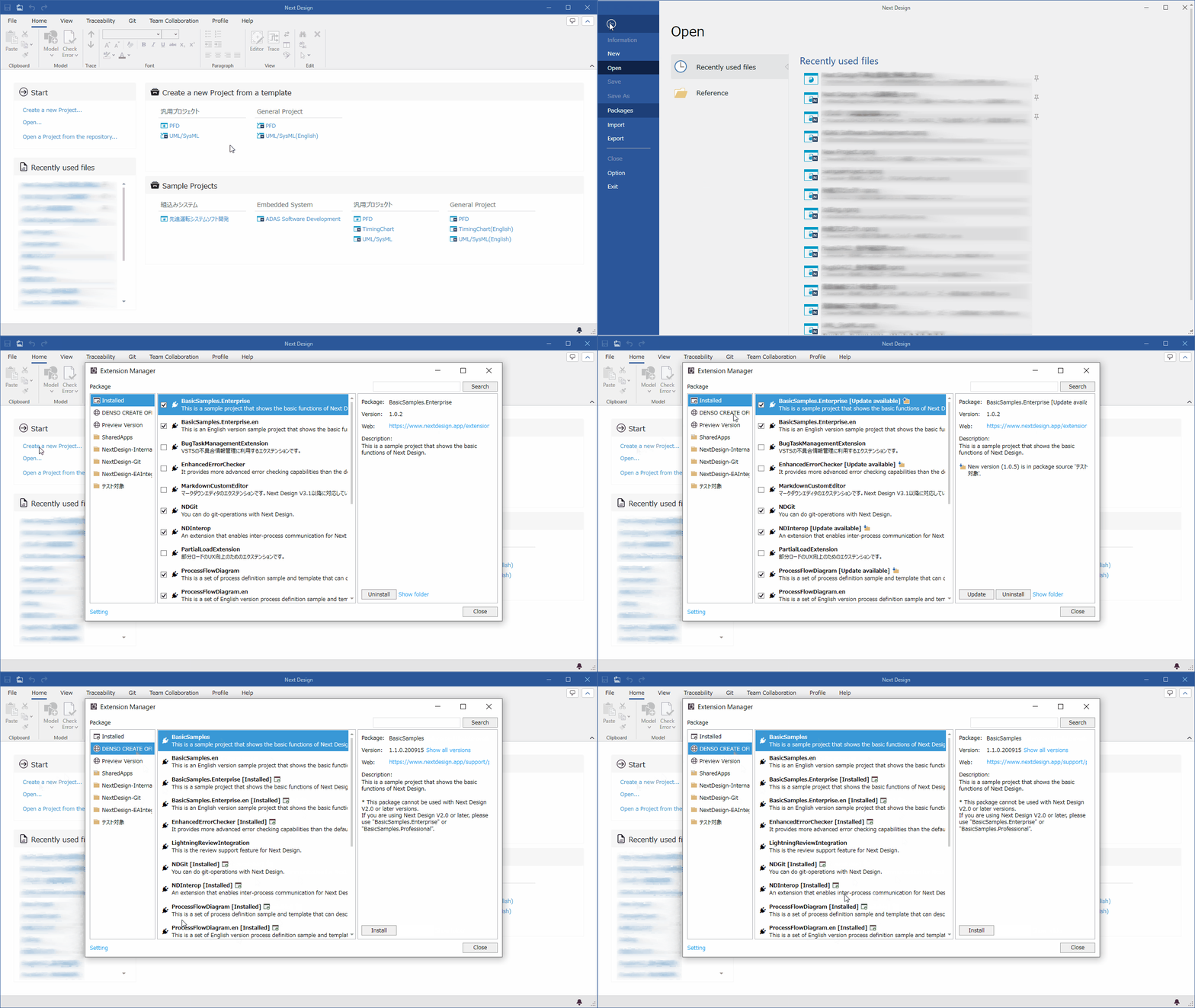
Instructions
- Click the [File] menu > [Manage Extensions] to open the [Manage Extensions] dialog box.
- Select [DENSO CREATE Official] from the list on the left.
- Once you can connect to the public URL, the installable extension packages will be listed in the center list.
If you connect to the Internet via a proxy, follow the steps below to configure your network settings.
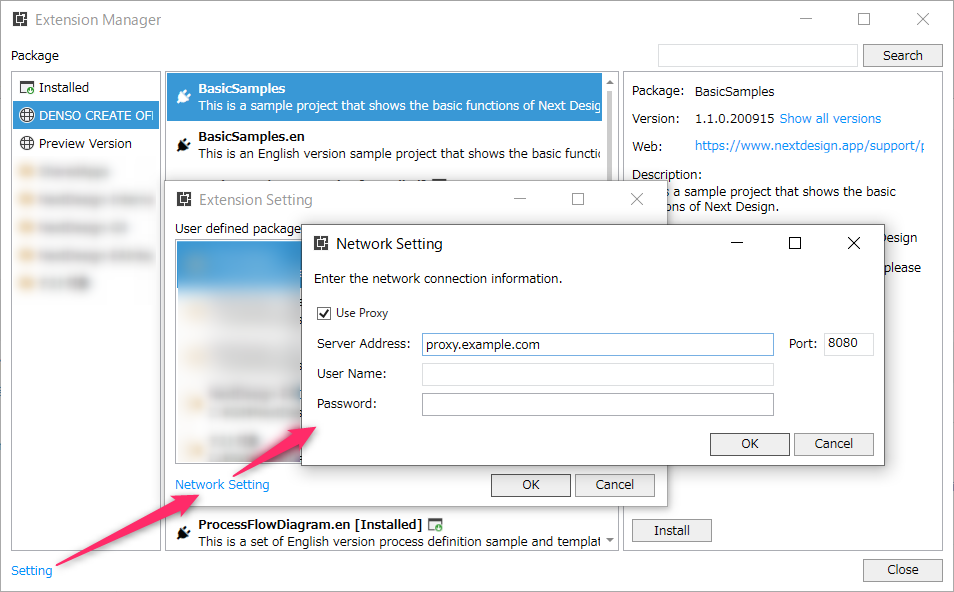
Network Configuration Instructions
- In the [Manage Extensions] dialog box, click the [Settings] link in the lower left to open the [Extension Settings] dialog box.
- Click the [Network Settings] link in the lower left to open the [Network Settings] dialog box.
- Select the "Use Proxy" checkbox, enter the required network connection information, including the Server Address, and click OK.
- Click OK in the Extension Settings dialog box to return to the Manage Extensions dialog box.
- Click the "Click here to retry loading" link in the center list.
- Once you've successfully connected to the public URL, the central list will display a list of installable extension packages.
Installing an Extension
To install a public extension in your Next Design installation, follow these steps:
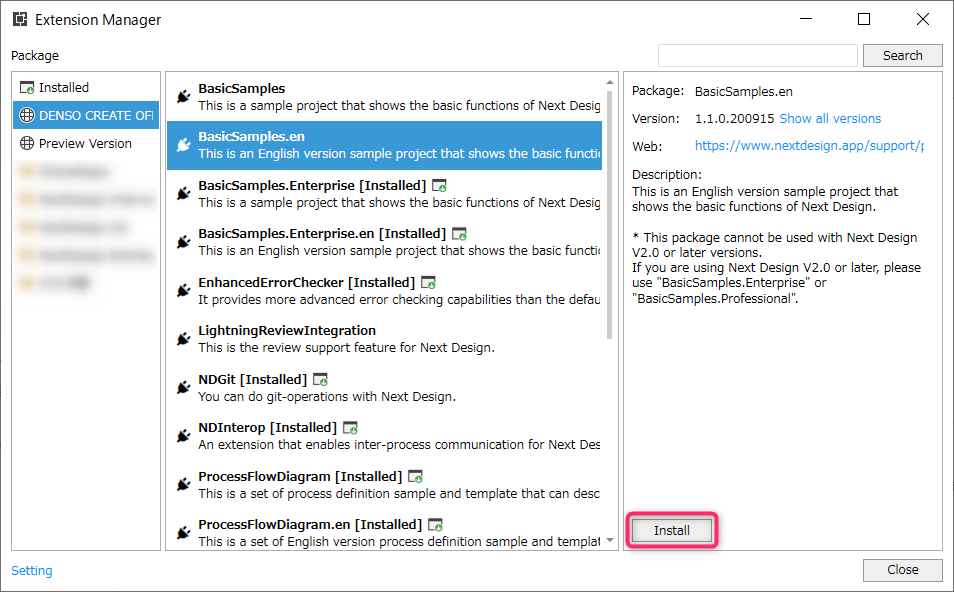
Instructions
- Click File > Manage Extensions to open the Manage Extensions dialog box.
- Select "DENSO CREATE OFFICIAL" from the list on the left to display a list of installable extension packages.
- Select the extension you want to install from the list of extension packages and click the Install button.
- When the installation is complete, click OK.
- To install multiple extensions, repeat steps 2 through 4.
- Click Close in the Manage Extensions dialog box.
- Follow the prompts to restart Next Design to enable the installed extension.
- Once Next Design restarts, the extension will be available for use.
note
- To install a specific version of an extension, select the extension you want to install, click the See All link next to Version on the right, select the version, and then install.
- To downgrade the version of an installed extension, uninstall it and then reinstall it with the specified version.
Installing Preview Extensions
If you want to try new extensions early, select Preview from the list on the left side of the Manage Extensions dialog box and install them.
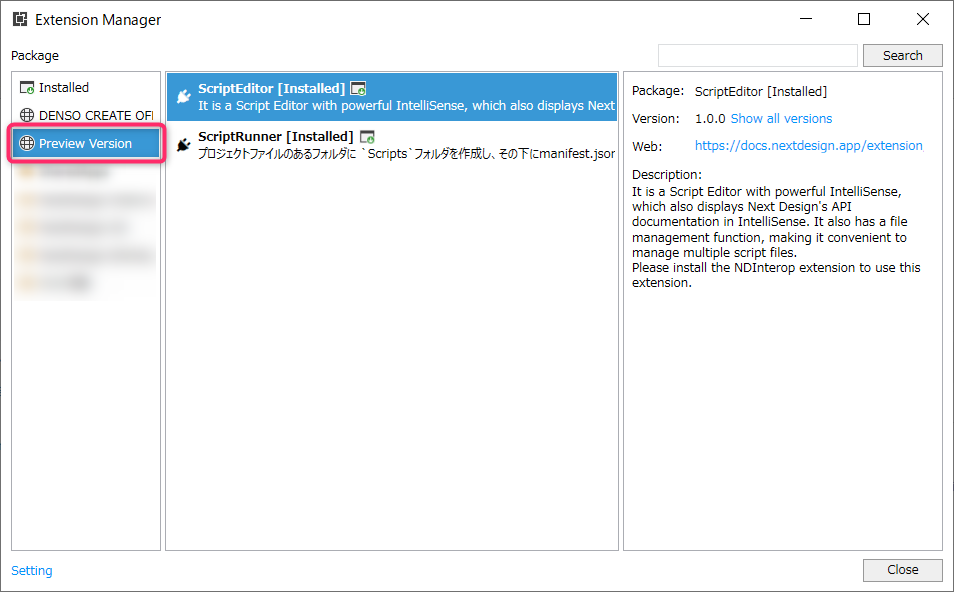
caution
- The preview version is a pre-release version and may contain bugs or errors. Please use with caution when handling important data.
- The specifications of the preview version may change at the time of the official release. Please note that usage may change at the time of the official release.